This page was translated automatically from French. Français
Functionality
Your codes 2FA, in the same place as your passwords
Each ID can keep its dual authentication key (TOTP), encrypted in the vault. Keyzen displays the current code and the extension fills it with one click.
Keyzen downloads from your customer portal, once your subscription is active. How to download
The 2FA Codes section
- A section Codes 2FA in the sidebar gathers all your tile codes : code en cours en grand, circular count 30 seconds and next code displayed in the last 5 seconds.
- Research (Ctrl+F), sort by name, by more used or favorite first.
- A click copies the code (or displays only if the copy is disabled); a click on the name opens the item.
- Hidden codes in presentation mode and erased when locked.
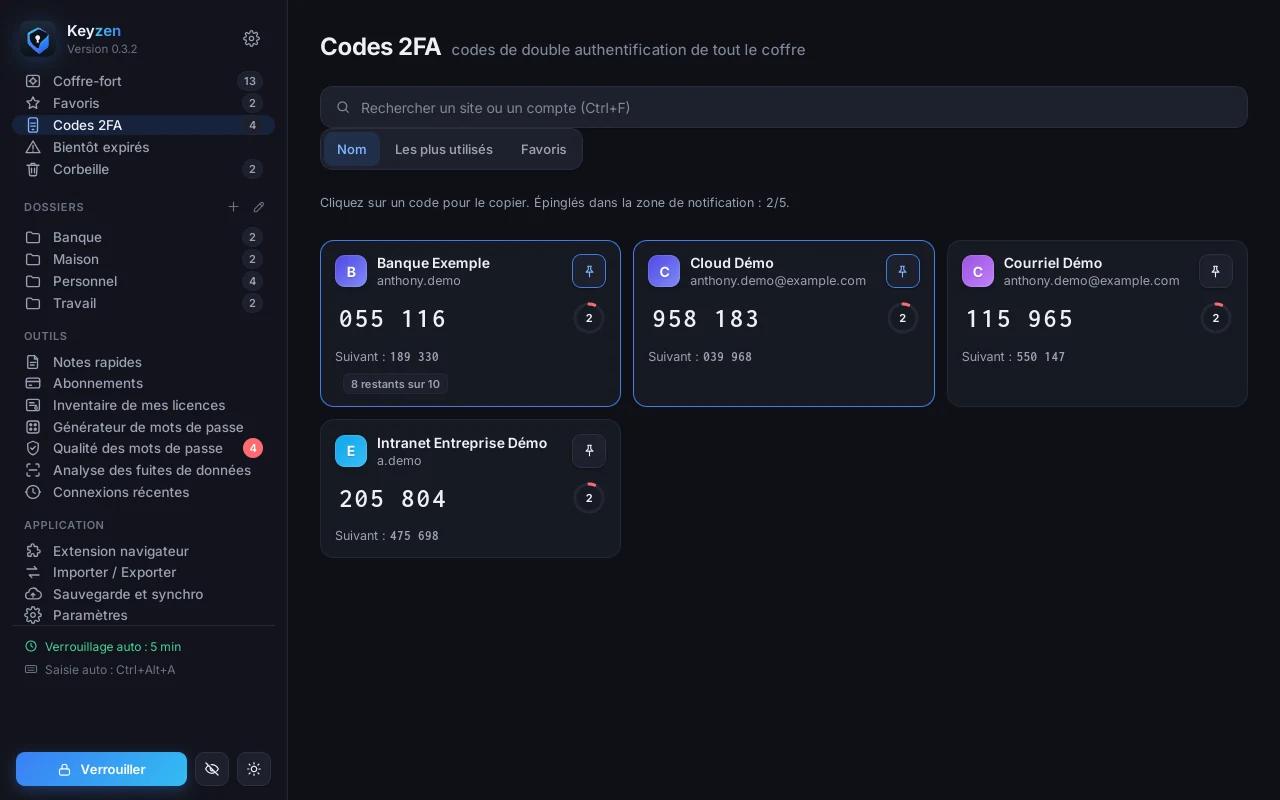
Codes within click range
- In the quick search, the "Codes 2FA" filter (Ctrl+2) copy or fill in a code directly.
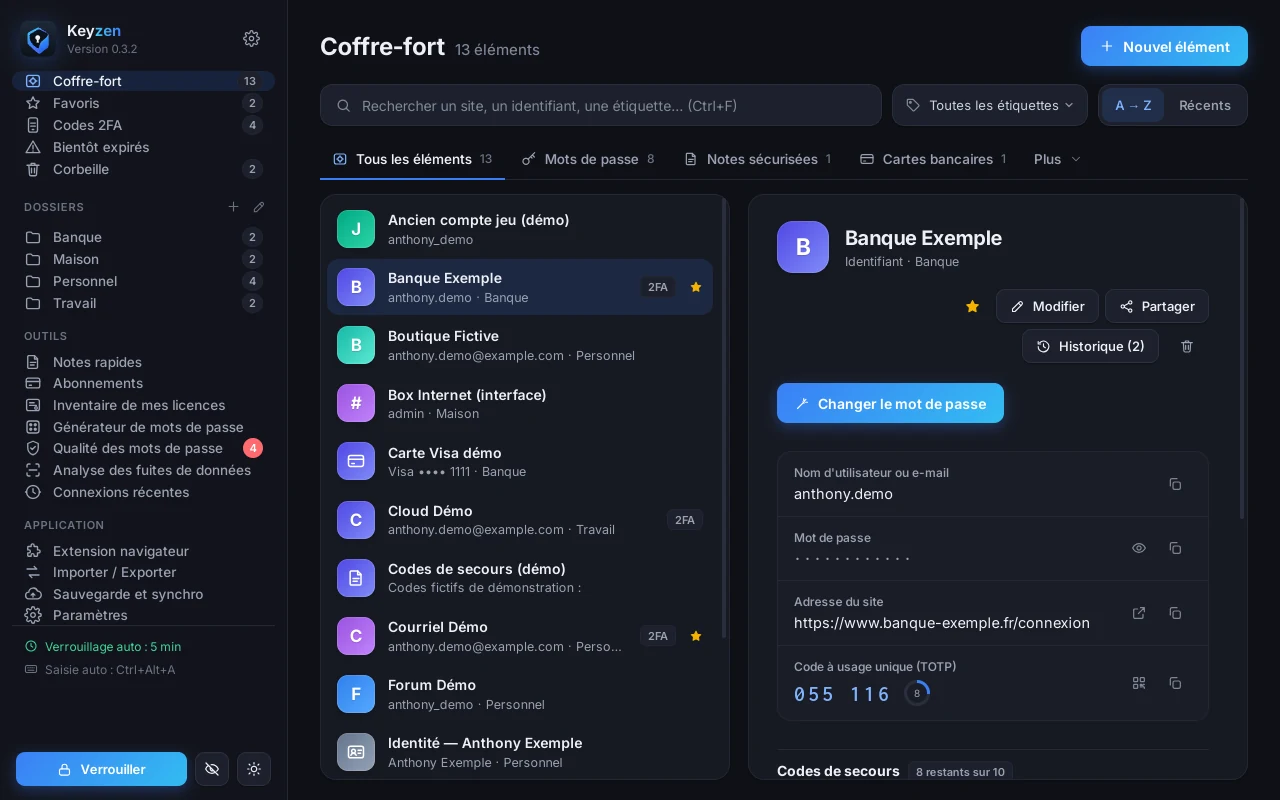
- Add the key to your hand, by a link
otpauth://or by reading a QR code from an image or screenshot (Win + Shift + S). - The 6-digit code displays live with its countdown.
- After the connection, the extension offers the account that just logged in on the code page: one click fills the code, whether or not cut into squares of a number.
- Only the code is sent to the page, never the password.
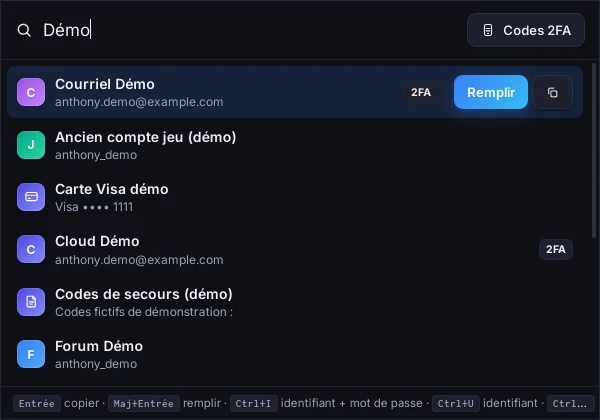
Emergency codes
- Paste the list of emergency codes given by the site (separated by spaces, return to line or commas): they are encrypted with ID.
- Mark a code as used; Keyzen displays the remaining number ("7 remaining in 10") and alerts you when there are 2 or less left.
- Included in exports and emergency kit when space permits.
Your favorite codes near the clock
- Pin until 5 codes in the notification area Windows, near the clock.
- A click on the Keyzen icon opens a small window always in the foreground to copy or fill the code, with unlocking by Windows Hello or password if needed.
- The window closes as soon as it loses focus or after 30 seconds, and is excluded from screenshots.
Import from your phone
- "Import from phone...": import export "Transfer accounts" from Google Authenticator (several accounts, several QR codes thereafter) from a image of QR code : photo, screenshot or image of the clipboard (Win + Shift + S).
- Also possible: direct reading by the PC camera (at first use, Windows asks you to allow desktop applications access to the camera) or links
otpauth://glued. - It's the secret key which is imported: the PC then calculates the same codes as the phone, displayed next to each account to check.
- Each code is attached to the corresponding identifier; in case of doubt, you choose.
- Microsoft Authenticator and Authy do not export their accounts: repost the QR code from each site. JSON files from Aegis, 2FAS and andOTP and HOTP accounts are not supported.
- Everything remains on this PC: no connection, images of the camera never recorded and erased from memory after playback.
Identify accounts to be protected
- The security score lists the accounts without double authentication.
- Keyzen indicates whether a site offers 2FA or passkeys, based on a list integrated into the program (no connection required), with the link to the site help page.
- "Show QR for a phone": a large QR code to add the code to a phone app (masked after 60 seconds).

Ready to take hold of your passwords?
Keyzen for Windows 10 and 11 (64 bits). Keyzen downloads from your customer portal, once your subscription is active.
Already a customer? Download from the client portal